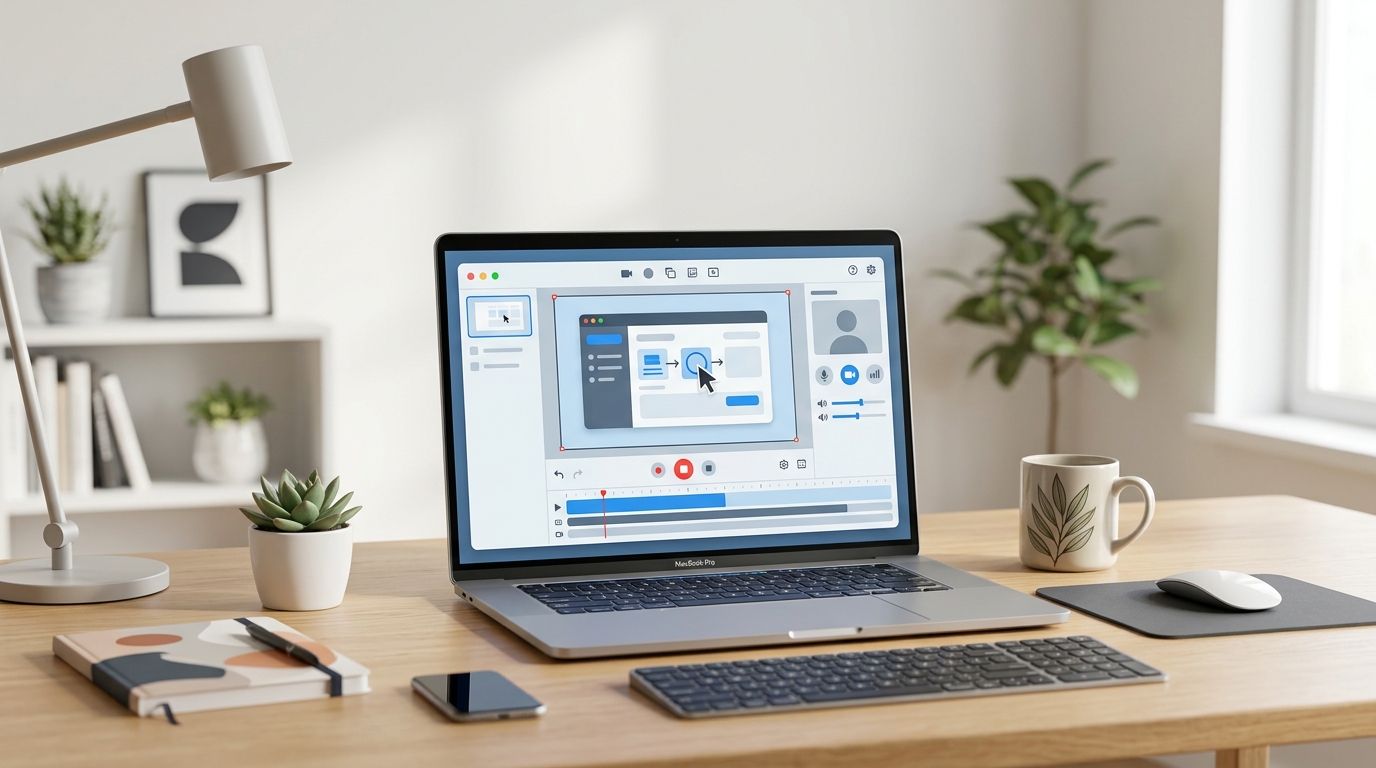
Best Screen Recording Tools for Tutorials
Mastering Tutorials: The Best Screen Recording Tools for Every Creator
Creating effective tutorials is an art form, and at its core lies the ability to clearly demonstrate your process. Whether you’re teaching software skills, explaining a complex concept, or showcasing a new AI tool you’ve discovered on UsefulStack, a high-quality screen recording is indispensable. But with so many options out there, how do you choose the best screen recording tool for your tutorial needs? This comprehensive guide will walk you through the top contenders, offering practical tips and specific recommendations to help you elevate your instructional content.
A great tutorial isn’t just about what you say; it’s about what you show. The right screen recorder can make the difference between a confused viewer and an engaged learner. Let’s dive into the features that matter and the tools that deliver.
Why High-Quality Screen Recordings are Crucial for Tutorials
Before we explore the tools, let’s briefly touch upon why investing in a good screen recording solution is so important for tutorials:
- Clarity and Comprehension: Visual demonstrations are often far more effective than text-based instructions. A clear recording ensures your audience sees exactly what you’re doing.
- Engagement: High-quality visuals keep viewers engaged and prevent them from clicking away. Blurry or choppy recordings are frustrating.
- Professionalism: Polished tutorials reflect well on your expertise and brand, establishing credibility with your audience.
- Accessibility: Well-produced videos can be more accessible to various learning styles and can be enhanced with captions and transcripts for broader reach.
Key Features to Look for in a Screen Recording Tool
When evaluating screen recording software for tutorials, keep these essential features in mind:
1. Recording Capabilities
- Full Screen, Window, or Custom Area: The flexibility to record your entire screen, a specific application window, or a custom-defined region is crucial.
- Webcam and Microphone Integration: For personalized tutorials, the ability to record your webcam feed (picture-in-picture) and voice narration simultaneously is a must.
- System Audio Recording: If your tutorial involves sound effects or music from your computer, ensure the tool can capture system audio.
2. Annotation and Drawing Tools
- Real-time Highlighting: Pointing out specific elements as you record helps guide your viewers’ attention.
- Text and Shape Overlays: Adding text, arrows, or shapes during or after recording can clarify complex steps.
3. Editing Features
- Trimming and Cutting: Easily remove mistakes, pauses, or unnecessary segments.
- Zoom and Pan Effects: Emphasize details by zooming in on specific areas.
- Transitions: Smoothly move between different segments of your tutorial.
- Cursor Highlighting: Make your mouse movements more visible and impactful.
4. Export and Sharing Options
- Multiple Output Formats: Support for popular video formats like MP4, MOV, and AVI.
- Direct Upload to Platforms: Integration with YouTube, Vimeo, or cloud storage can streamline your workflow.
- Quality Settings: Control over resolution, frame rate, and compression.
Top Screen Recording Tools for Tutorials
Now, let’s explore some of the best tools available, catering to different needs and budgets.
1. OBS Studio (Open Broadcaster Software) – The Free Powerhouse
OBS Studio is a free, open-source software widely used by streamers and content creators, and it’s an excellent choice for tutorials. While it has a steeper learning curve than some commercial options, its power and flexibility are unmatched for a free tool.
- Pros: Completely free, highly customizable, supports multiple scenes, robust audio mixer, excellent for live streaming and pre-recorded content.
- Cons: Interface can be intimidating for beginners, requires some setup to get optimal recording quality.
- Best for: Users who need advanced control, live tutorial sessions, and those on a tight budget.
- UsefulStack Tip: Pair OBS Studio with a good microphone for crystal-clear audio narration.
2. Camtasia – The All-in-One Professional Solution
When it comes to dedicated tutorial creation, Camtasia by TechSmith is often considered the gold standard. It combines a powerful screen recorder with a comprehensive video editor, specifically designed for instructional content.
- Pros: Intuitive interface, excellent built-in editing suite (including quizzes and interactive elements), superb annotation tools, pre-built assets (intros, outros, music), cross-platform (Windows & Mac).
- Cons: Premium price tag, can be overkill for very simple recordings.
- Best for: Professionals, educators, and businesses who create frequent, high-quality, and interactive tutorials.
- UsefulStack Tip: Utilize Camtasia’s SmartFocus feature to automatically zoom in on mouse clicks and key presses, enhancing viewer comprehension.
3. ScreenPal (formerly Screencast-O-Matic) – User-Friendly and Cloud-Integrated
ScreenPal offers a fantastic balance of ease of use and powerful features, making it a popular choice for quick tutorials and educational content. Its cloud-based approach simplifies sharing and collaboration.
- Pros: Very easy to learn and use, robust free version, cloud hosting and sharing, decent editing features for a web-based tool, direct publishing to YouTube and Google Drive.
- Cons: Some advanced editing features are behind a paywall, free version has a watermark and time limit.
- Best for: Educators, students, and anyone needing a quick, simple, and shareable screen recording solution.
- UsefulStack Tip: Use ScreenPal for creating short, digestible “how-to” videos for specific features of AI tools you’re reviewing on UsefulStack.
4. Loom – The Quick and Collaborative Video Messenger
While not a full-fledged video editor, Loom excels at rapid screen recording and sharing, making it perfect for quick explanations, feedback, and informal tutorials. It’s a fantastic tool for internal team communication or delivering personalized responses.
- Pros: Extremely fast recording and sharing, cloud-based, includes webcam bubble, viewer analytics, easy commenting and reactions.
- Cons: Limited editing capabilities, not ideal for highly polished, long-form tutorials.
- Best for: Short, informal tutorials, team communication, quick software demos, and providing visual feedback.
- UsefulStack Tip: Use Loom to quickly demonstrate how to navigate a new AI tool’s interface or to explain a bug report visually.
5. Snagit – The Screenshot & Short Video Powerhouse
Also from TechSmith, Snagit is often overshadowed by its big brother Camtasia, but it’s an incredibly powerful tool for capturing both static images and short videos. If your tutorials frequently involve a mix of screenshots and brief video clips, Snagit is an excellent choice.
- Pros: Best-in-class screenshot capabilities, intuitive video recording for short clips, easy annotation and markup tools for both images and videos, excellent organization.
- Cons: Video editing is very basic compared to Camtasia, not designed for long, complex video tutorials.
- Best for: Creating mixed-media tutorials, quick visual explanations, and documenting software processes with both images and short videos.
- UsefulStack Tip: Combine Snagit’s powerful image annotation with short video clips to create incredibly detailed and clear step-by-step guides.
Practical Tips for Creating Engaging Tutorials
No matter which tool you choose, these tips will help you create more effective tutorials:
- Plan Your Script: Outline your steps and key talking points before you hit record.
- Clear Audio is King: Invest in a good microphone and record in a quiet environment.
- Speak Clearly and Concisely: Avoid jargon where possible and explain complex terms.
- Use Visual Cues: Point, highlight, and zoom to draw attention to important areas.
- Keep it Paced: Don’t rush, but also avoid unnecessary pauses.
- Add an Intro and Outro: Professional intros and outros brand your content and provide clear beginnings and endings.
- Practice Makes Perfect: Do a few test runs to get comfortable with your script and your recording tool.
- Call to Action: Encourage viewers to subscribe, comment, or visit your website (like UsefulStack for more AI tools!).
Conclusion
Choosing the best screen recording tool for your tutorials depends on your specific needs, budget, and desired level of sophistication. Whether you opt for the free power of
Frequently Asked Questions
What features are essential in a screen recorder for creating effective tutorials?
Look for clear audio recording, webcam overlay, annotation tools (like highlights or arrows), basic editing capabilities, and high-quality export options to ensure your tutorials are professional and easy to follow.
Are there reliable free screen recording tools suitable for educational tutorials?
Yes, several free tools offer robust features for tutorials, often with limitations like watermarks or recording time. They are great for beginners or those with basic needs, providing good quality for educational content.
How can I ensure my screen recordings for tutorials have professional audio quality?
To achieve professional audio, use a dedicated external microphone, record in a quiet environment to minimize background noise, and monitor your audio levels during recording. Good audio is crucial for clear instruction.